AI coding tools aren’t just getting smarter—they’re becoming always available. And honestly, that shift is bigger than any benchmark improvement.
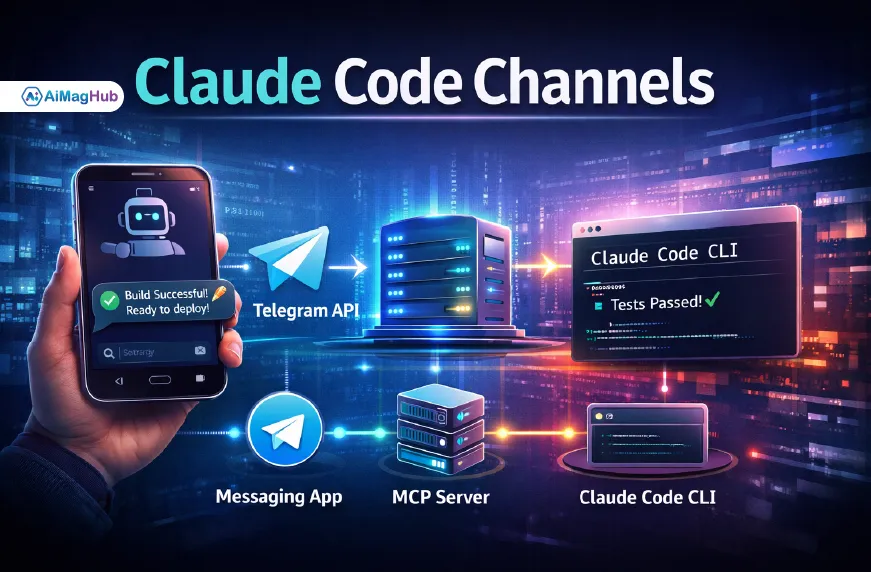
With Claude Code Channels, developers can now message their AI coding agent through apps like Telegram or Discord while it keeps running in the background. No need to reopen your IDE. No need to sit and wait.
It’s like having a developer teammate who never logs off.
But here’s the thing most articles miss:
They explain what it is… not how to actually use it safely and effectively.
This guide fixes that.
What Are Claude Code Channels?
Claude Code Channels is a feature from Anthropic that allows developers to interact with a persistent Claude coding session via messaging platforms.
Instead of this old workflow:
- Open tool → write prompt → wait → repeat
You now get:
- Message AI anytime → it responds → keeps working in background
It’s asynchronous, always-on, and way more flexible.
Why This Is a Big Deal (Not Just Another Feature)
Most AI tools still follow a “prompt window” model.
Claude Code Channels breaks that.
What Changes:
- You can deploy code from your phone
- Monitor CI/CD without logging in
- Debug issues remotely
- Let AI handle tasks while you’re offline
This is the beginning of AI as infrastructure, not just assistance.
How Claude Code Channels Work (Architecture Explained)
At a high level, it runs on Model Context Protocol (MCP).
Flow:
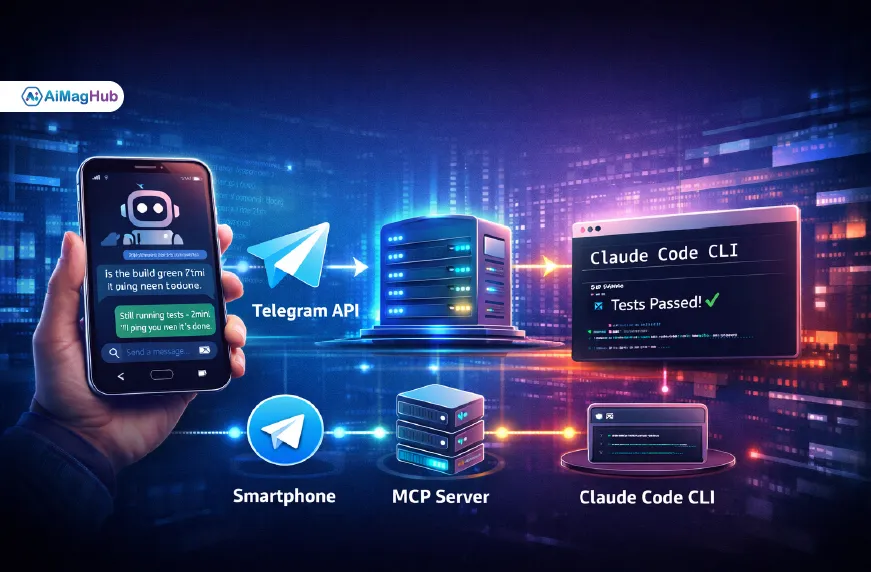
Your Phone → Telegram/Discord → MCP Server → Claude Code CLI → Response Back
Key Components:
- Messaging App (Telegram / Discord)
- MCP Connector (bridge layer)
- Claude Code Session (running locally or server)
MCP basically acts like a universal adapter between systems.
🛠️ 5-Minute Setup: Connecting Claude Code to Telegram
This is where we outperform most articles—actual setup steps.
Requirements
Before starting, you’ll need:
- Claude Code CLI (v2.1.80+)
- A Claude account (Pro/Max typically)
- Bun runtime installed
- Telegram account
Step 1: Install Bun Runtime
Run:
curl -fsSL https://bun.sh/install | bash
Step 2: Start Claude Code with Channels Enabled
claude-code --channels
This starts a persistent session.
Step 3: Create Telegram Bot
Open Telegram and search for BotFather
Then:
/start
/newbot
Follow instructions and copy your bot token
Step 4: Install Telegram Plugin
Inside Claude Code:
/plugin install telegram@claude-plugins-official
Step 5: Connect Bot Token
Set your token:
export TELEGRAM_BOT_TOKEN=your_token_here
Step 6: Start Messaging Your AI
Send a message to your bot like:
“Check build status”
Claude will respond from your running session.
💬 Discord Setup (Quick Overview)
For Discord:
- Go to Discord Developer Portal
- Create a bot
- Enable Message Content Intent
- Add bot to server
- Connect via MCP plugin
Real Use Cases (Where It Actually Shines)
🔁 CI/CD Monitoring
You can literally ask:
“Is deployment successful?”
And get real-time updates.
🧪 Debugging on the Go
Claude can:
- read logs
- suggest fixes
- explain errors
All via chat.
📦 Code Changes & Automation
- Generate documentation
- Review PRs
- Run scripts
Without opening your dev environment.
Claude Code Channels vs OpenClaw
A lot of people compare it with OpenClaw.
Quick Comparison
| Feature | OpenClaw | Claude Code Channels |
|---|---|---|
| Setup | Complex | Easier |
| Security | Risky in some builds | Strong defaults |
| Ecosystem | Community-driven | Structured (Anthropic) |
| Stability | Experimental | More stable |
OpenClaw proved the idea. Claude made it usable.
⚠️ The Hidden Catch (Most People Ignore This)
Here’s something critical…
Context Window Limits
Each MCP tool you load consumes tokens.
If you overload:
- Too many tools
- Too many integrations
You can hit 200k+ token usage quickly
Fix:
- Use selective loading (e.g.,
pickMcp()strategy) - Only enable required tools
- Avoid “load everything” setups
This alone can save performance issues.
🔐 Security Deep Dive (Don’t Skip This)
Persistent agents = real risks.
Key Risks:
- Unauthorized access
- Command execution abuse
- Repo modification
Must-Use Security Controls
| Control | Why It Matters |
|---|---|
| Sender Allowlist | Only trusted users can send commands |
| Pairing Flow | Secure initial connection |
| Command Restrictions | Prevent dangerous operations |
| Human Approval | Required before commits |
| Read-only Mode | Protect codebase |
Dangerous Flag Warning
--dangerously-skip-permissions
Avoid this unless you 100% trust the environment.
🧪 Testing Safely with Fakechat
Before going live, use Fakechat plugin.
This allows:
- local testing
- no real messaging exposure
- safe experimentation
Most beginners skip this—and regret it.
Best Practices for Claude Code Channels
1. Start with Monitoring, Not Execution
Don’t give full control immediately.
2. Limit Tool Access
Less tools = better performance + security.
3. Use Clear Commands
Messaging requires short, precise instructions.
4. Always Log Activity
Track what your AI is doing.
5. Separate Environments
Use staging before production.
Pros and Cons
✅ Pros
- Always-on AI assistant
- Works from mobile
- Great for async workflows
- Powerful automation potential
❌ Cons
- Setup complexity
- Security risks if misconfigured
- Still evolving
- Requires technical knowledge
FAQs
Mostly in preview and may require specific access.
Yes, especially for setup and security.
Yes—but should be controlled carefully.
For async workflows, yes. For simple tasks, maybe not.
The Future: AI That Never Sleeps
Claude Code Channels is part of a bigger shift:
From:
- tools → systems
- sessions → persistence
- prompts → conversations
Soon, developers won’t “use AI tools”…
They’ll work alongside AI systems continuously.
Final Thoughts (What You Should Do Next)
Your competitor explained what Claude Code Channels is.
Now you know:
- how to set it up
- how to secure it
- how to actually use it
Action Steps:
- Install Claude Code CLI
- Connect Telegram or Discord
- Start with simple monitoring tasks
- Add automation gradually
- Lock down security early
If you do this right, you’re not just using AI…
You’re building a 24/7 coding workflow that works even when you don’t.
Related Article: Gening AI Review 2026: Best Character.ai Alternative or Overhyped?